
Inspection report
This function was made with the purpose of registering which trailer is damaged, and what sort of damage happened to it, so you can have better visibility and control over this.
To start the report, there are two ways:
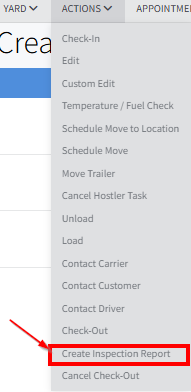
- From the ACTIONS menu
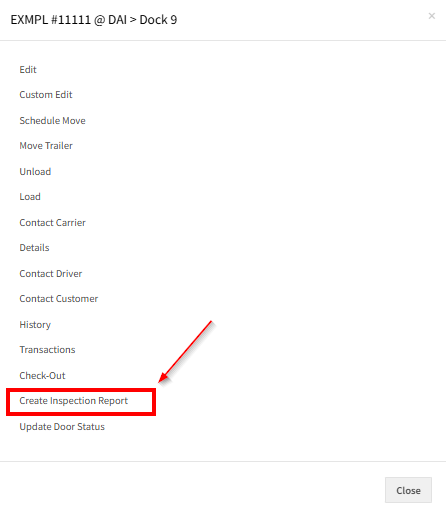
- From clicking any trailer (For example, in the Inventory) and then clicking Create Inspection Report
Either path will take you to the same screen:
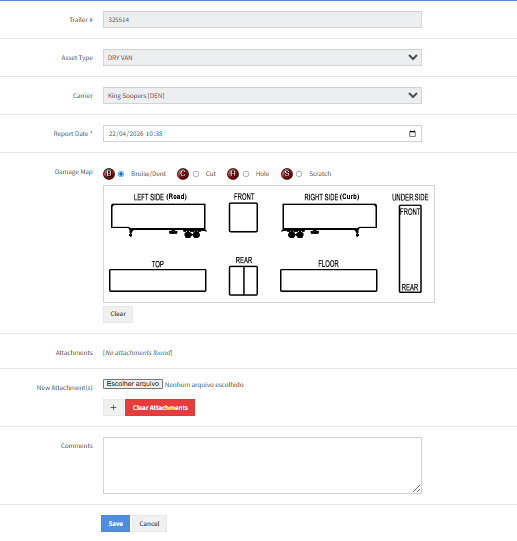
Damage map
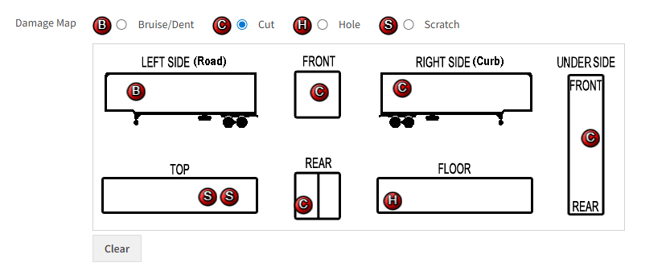
The Damage Map function gives you views from all angles of the trailer. From there, you can mark where exactly in the trailer the damage is located and also the type of damage. If you need more options for damage types, you can talk to the YMX person responsible for your site so that more options can be added later.
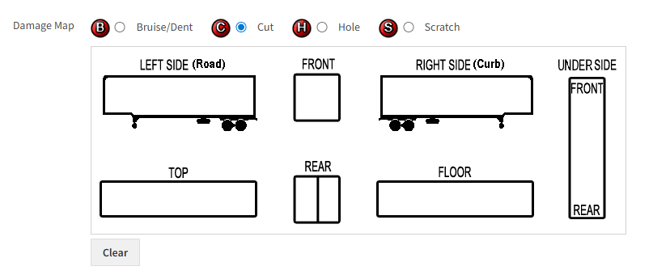
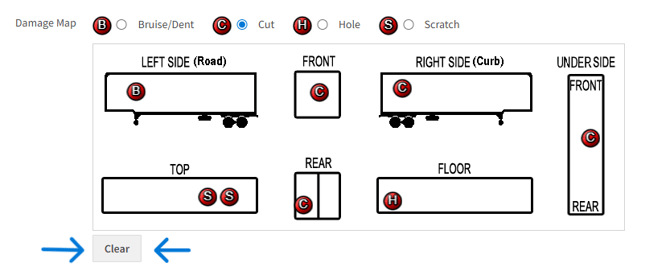
If you want to clear the markings, you can click the Clear button. Please be aware that the Clear button will clear ALL the markings.
Attaching pictures
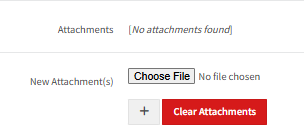
You can also attach pictures of the damage. These pictures will be associated with the trailer to which they’re added. Click the Choose File button to add an attachment.
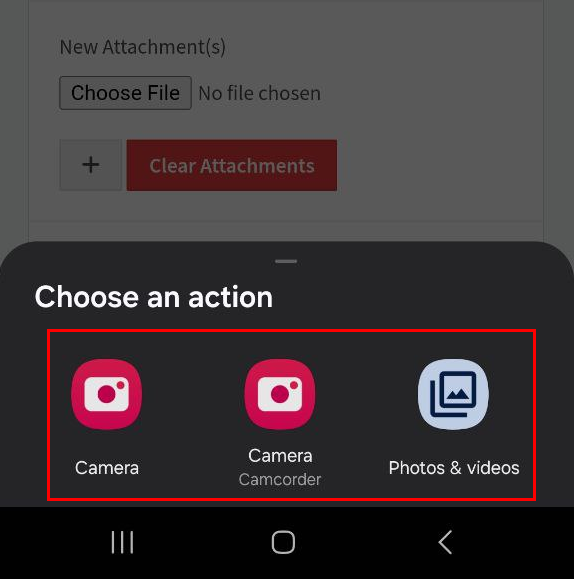
When using a phone or tablet, you can also choose to use your camera to take a picture instead of uploading a file. The picture you take will automatically be attached to the report.
Once a file is chosen, the file name can be seen beside the Choose File button.
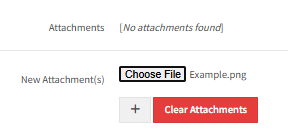
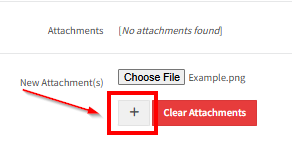
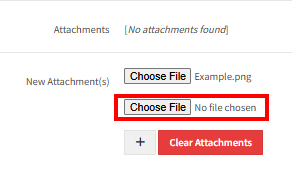
To add more files, click on the plus button. A new Choose File button will then appear. You can append many files this way.
Comments
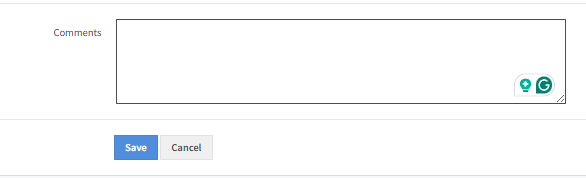
You can also add comments to specify any information that is not conveyed by the other options
Viewing the inspection
To view the inspection report for a trailer, you can head to the inventory page and search for the trailer. Under the Actions section, there will be two icons that indicate an inspection report was made for that trailer

Be aware that the Note field here is for notes made via Check-in or editing the trailer itself. The inspection report notes are located when you open the inspection report.
Each icon can be clicked to view something. The paperclip icon lets you view the attachments, and the note icon lets you view the report itself
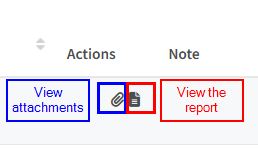
When the note icon is clicked, it will take you to the reports page.
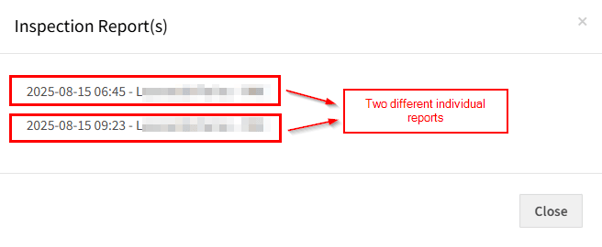
Once you click one of the reports, a new page will be shown with the report details.
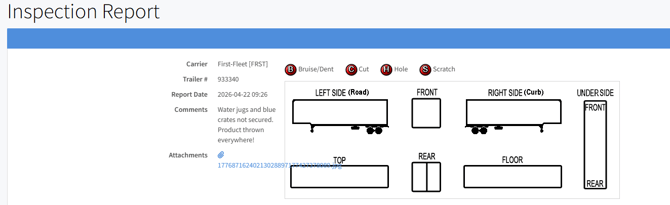
Each individual report will show the location and type of damage marks that were indicated when the report was made.
Please note that the attachments will show every attachment made to that trailer that was not previously deleted, even if they were attached in a previous report.
The comments made in the inspection report can be found in the comments section indicated below.
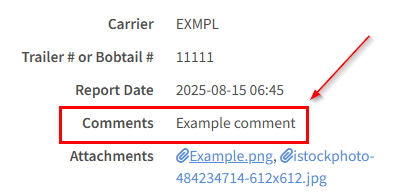
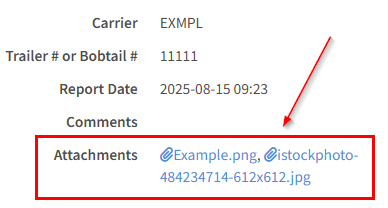
Each file in the attachments list can be clicked to be shown in a new tab.
If you have any questions, please contact product_support@ymxlogistics.com!