
Resetting your password
When a user forgets their password, they have the option to reset it from the YMX OS login screen.
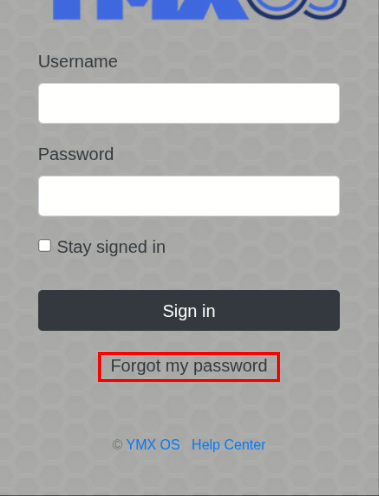
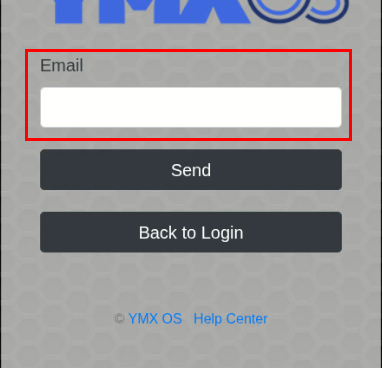
Once the user clicks "Forgot my password", a new screen will appear, where the user can input their e-mail address:
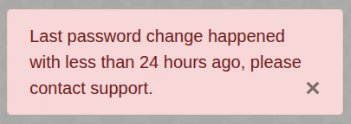
If the password has already been reset in the previous 24 hours, the user will have to wait or contact support to reset the password again, as indicated in the following message:
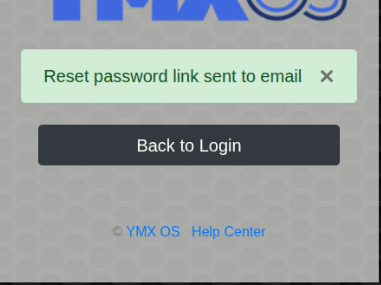
Once the user types in their e-mail address and clicks the "Send" button, a message will appear confirming that a reset password link was sent:
The user will receive an email message containing a password reset link. When that password reset link is clicked the password change screen will be displayed:
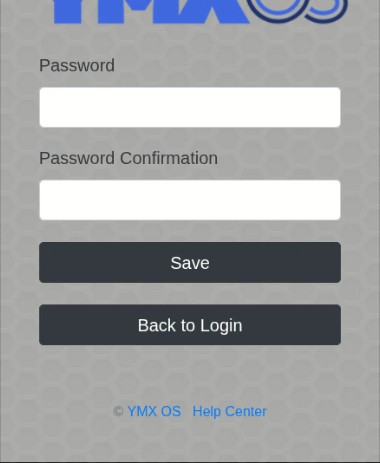
The user can now type in the new password for the account and then type it in again to confirm.
Minimum requirements for the password are set by the site administrator. Any criteria that are not met will be shown in red, while criteria that has been met will be shown in green. The bar below the Password field represents the percentage of criteria that have been met.
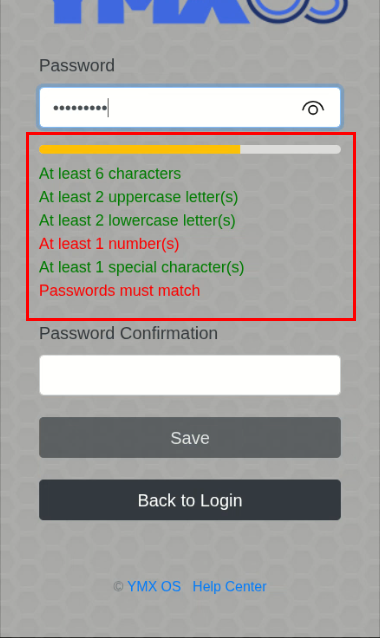
The "Save" button will be greyed out and is disabled until a valid password has been typed and confirmed. Clicking the "Save" button will immediately reset the account's password.
After the password has been reset, an e-mail confirmation is sent to the address previously specified. If you receive this e-mail without having reset your password, contact your supervisor or admin immediately and follow the instructions listed on the e-mail.
First Access
When accessing your account for the first time, you will be prompted to change your initial password to a secure one. The screen and interface are the same as described above.