
How to log in using SSO
To log in using SSO, click "Login with SSO" (the button highlighted below) after opening the yard site in the browser.
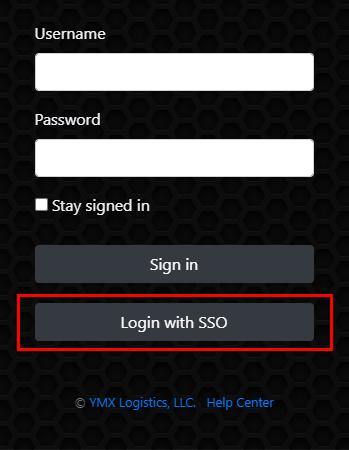
When clicked, this button will take you to a screen similar to this, with the company's logo appearing in the spot indicated in the picture below:
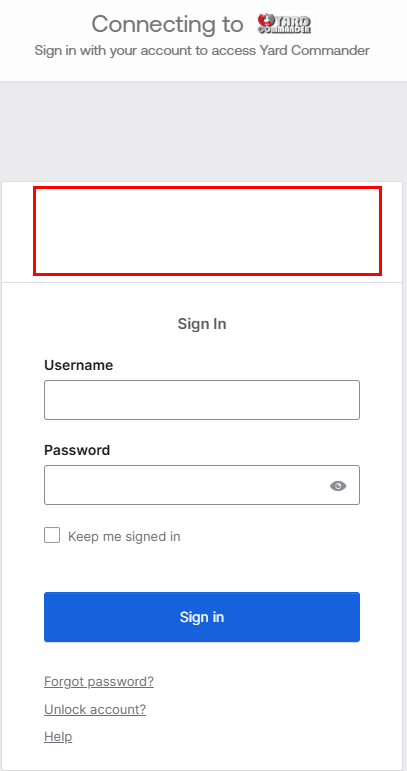
From here, all that is needed is to use your corporate credentials, click "Keep me signed in" if you want a persistent login, and then click "Sign in" to enter the site normally.
If a user is not yet added to the site, they will be taken to a page asking them to contact their admin to complete setup.
Adding an SSO user to the site
For an admin to add a user to the site, the user must first be added to the site's SSO user list by YMX personnel. If this has already been done, the admin should follow these steps:
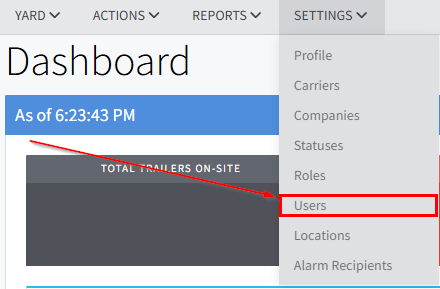
- Click "SETTINGS" in the top bar, then click "Users"
- Click on the "--- Add User ---" dropdown menu
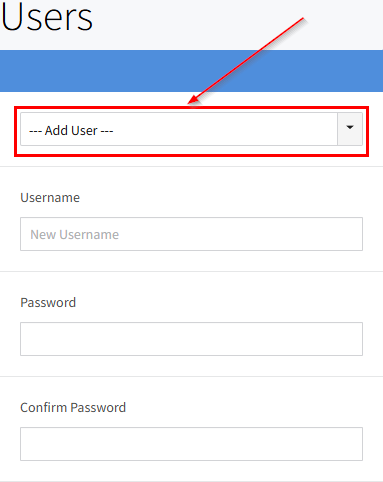
- Select one of the SSO users that appear on the list. You can type part of the user's email, or, alternatively, you can also type in SSO to check the list of users that weren't yet added.
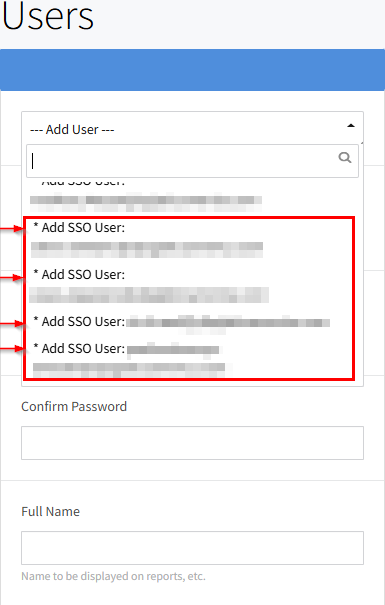
- Fill in the information as needed and, once complete, click the "Save" button. For SSO users, the password fields should be left blank.
To verify if the user has been successfully added,
- Refresh the page and click on the "--- Add User ---" dropdown menu
- Type the user's email
- If it shows up on the list without the "* Add SSO User:" prefix, it means the user has been successfully created and can log in via the SSO method described in the first section of this article.