The Users page allows for the addition of new users as well as the editing an existing user’s information or deleting the account altogether. On Yard Commander, go to Settings > Users.
How to Create a User Account
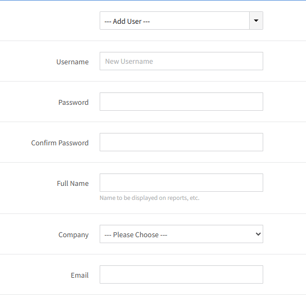
Step 1: Select Add User from the top drop-down list and fill in the following fields:
- Username: *Must be unique
- Password
- Confirm Password
- Full Name
Optional:
- SMS Number
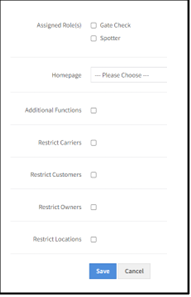
Step 2: Assign Role(s) to the user.
- Additional Functions
Used to give an individual access to functions, in addition
to those given by the Role assignment.
- Restrict Carriers
Used to restrict the user’s view of data to only those
trailers that are assigned the selected carrier. - Restrict Customers
Used to restrict the user’s view of data to only those
trailers that are assigned the selected customers. - Restrict Locations
Used to restrict the user’s view of data to only those
trailers that are placed in the selected locations yard.
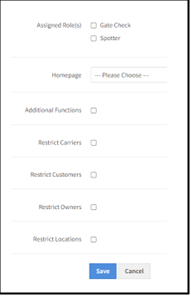
Step 4: Assign a Homepage where the system will redirect the user to after any action is completed.
Step 5: Click Save to add/modify the user’s assigned permissions.
How to Edit a User’s Permissions
Step 1: select the user’s name from the User drop-down menu.
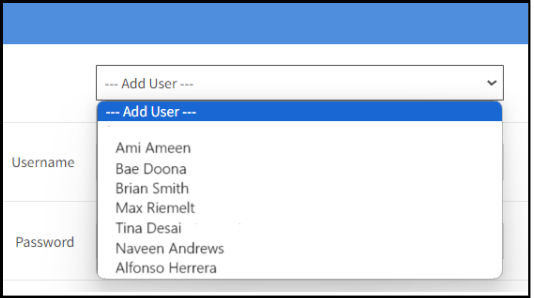
Step 2: Modify the user’s Assigned Role(s).
- Additional Functions
- Restrict Carriers
- Restrict Customers
- Restrict Locations
Step 3: Click Save to confirm the modifications.
How to Delete a User
Step 1: select a name from the User drop-down menu.
Step 2: Click Delete. The user will be removed but the history associated with that user will be retained.