
The Yard Check page is used to confirm and update locations and trailers in inventory.
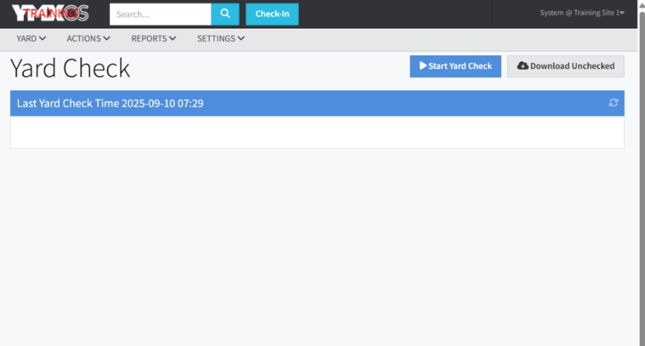
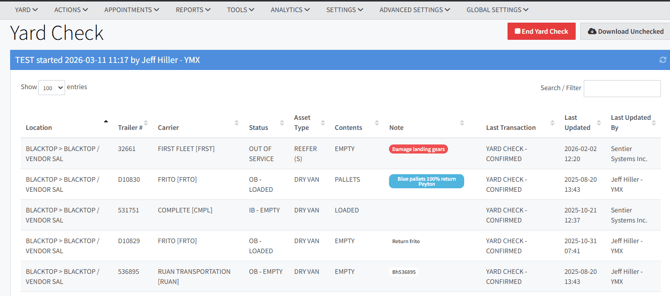
By going on Yard > Yard Check the listing of all traillers will be blank. The header shows the last time a yard check was completed.
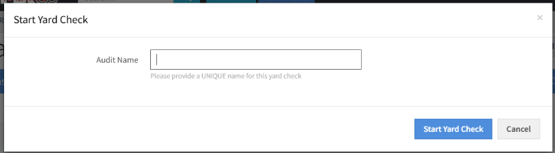
To start a yard check, simply click the Start Yard Check button on the Yard Check screen (For users that have been given access to the Start Yard Check function, that button will appear).
A modal will popup asking for a unique name to be assigned to this yard check. This will be used in the future for lookups and reporting.
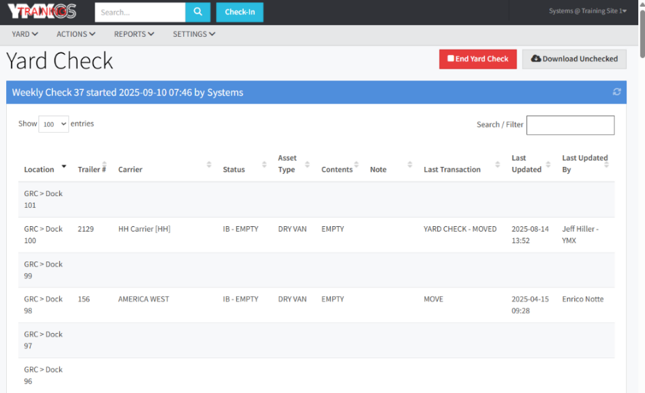
The yard inventory will populate and the blue header will display the name of the yard check as well as the date/time started and who started it.
The listing will show unchecked locations and users will follow the usual process of confirming or amending the data.
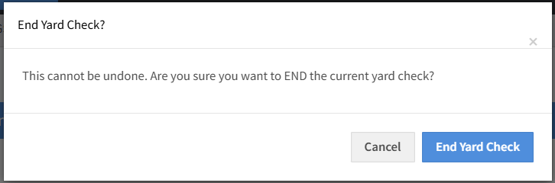
To complete a yard check, simply click the End Yard Check button on the Yard Check screen (For users that have been given access to the End Yard Check function, that button will appear).
A modal will popup asking for confirmation as there’s no facility to restart the yard check once completed. If a yard check was ended and confirmed mistakenly, a new yard check will have to be started.
CONFIRM TRAILER IN LOCATION WINDOW!
Here are some of the information that should be available to you once you click confirm.
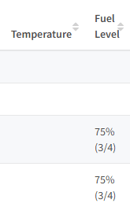
You'll also be able to see temperature and fuel level and run specifics temperature and fuel checks by clicking on the icons below.

Please, be aware that:
1 - Actions>Temp/Fuel Check: stores a temp check transaction and resets the clock for "last checked"
2 - Yard>Yard Check (for reefers): stores temp check transaction as well as a yard check transaction and does not reset the clock for "last checked".
Reports
-
Yard Check History [source: REPORTS menu]
The user selects the date range of the yard checks to report on. Clicking the View button will list all the yard checks performed in the selected period.
Included are the yard check name, start/end times, status (completed or in progress), as well as totals relating to that check. Optionally, clicking the Download button will provide the same data in a CSV formatted file.
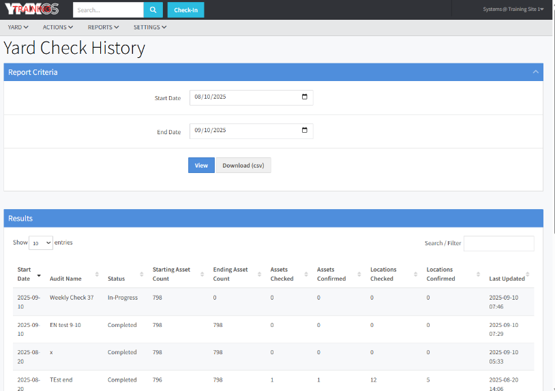
Clicking on any row in the results pane will open a listing of the transaction details relating to the selected yard check.
-
Yard Check Details [source: REPORTS menu]
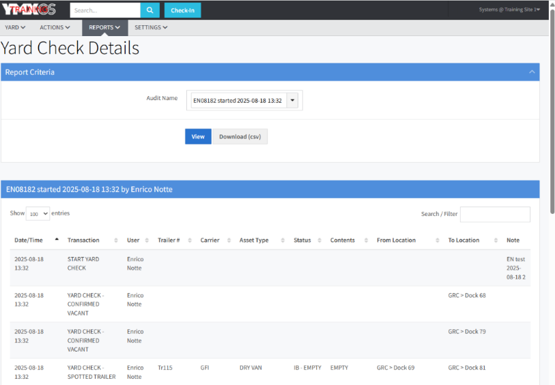
The user selects a specific yard check from the options list, which includes the audit name and the date/time the yard check was started.
Clicking View will list the transactional details of the yard check. Optionally, clicking the Download button will provide the same data in a CSV formatted file.
-
Download Unchecked [source: button on Yard Check page]
The Yard Check screen includes a button Download Unchecked. This provides a listing of assets and locations not checked in the last completed or current yard check, if one is in progress.
There is an optional setting that will automatically send out a report of assets in inventory that were not verified via the yard check. The report is sent out by email to a preset distribution list when a yard check is completed (ie. End Yard Check button).
Transactions
This update also includes more specific transaction tracking relating to the yard check. The following transactions will be recorded corresponding to the activity performed:
|
|